Kibitz User Guide
This guide covers everything you can click in the app and every feature that is currently CLI-only. It is also available inside the app: press Help & tour at the bottom of the navigation rail (Esc closes it).
The window at a glance
- Navigation rail (left edge) — the KIBITZ wordmark, a line showing the open database ("scid.sqlite · 121,438 games"), four capability groups (STUDY, COACH, TRAIN, DATA IN / OUT), and a footer with Settings and Help & tour. Rail items carry live badges (game count, cards due, job counts…) — a badge is real data or absent, never a fake number. Below 1280 px window width the rail collapses to icons (hover an icon for its label and badge). Minimum window size is 1180×760.
- Main column — the active screen, with the status strip along the bottom.
- The app starts on Home and automatically re-opens the last database you used (the path is remembered; the default is
testdata/corpus/scid.sqlite, resolved from the repository root). A first-run tour walks the rail groups, one card anchored beside each group; replay it any time from Help & tour.
The rail, item by item
- STUDY — Database (badge: game count), Game, Opening tree, Position search.
- COACH — Home (the startup screen), Explain (a toggle, not a page — switches the Game view's Explain panel on/off; badge shows "on"/"off"), Profile (badge: "N findings" once a profile is built), Opponent prep.
- TRAIN — Openings SRS (badge: "N due"), Opening triage (where your games left your book, and where to grow it), Opening lab (where an opening actually fails you, from your own games), Tactics (badge: attempts, or puzzle count before any attempt), Endgames.
- DATA IN / OUT — Import PGN / SCID, TWIC ingest (badge: "wk NNNN", the newest imported week), Account syncs (badge: "N linked" configured accounts), Jobs (badge: "N running" / "N pending" / done count).
- Footer — Settings, Help & tour (this guide + the replayable tour).
In the data tables used across the app (Database, Opening tree, Position search, Profile, Prep), some column headers sort: clicking one cycles ascending → descending → original order.
Home
The startup screen: your day at a glance, built only from real data — absent data produces absent panels, never invented widgets. Needs an open database ("Open a database to see your day." otherwise).
- Greeting — the date, plus a commitment clause when you have set one in Settings' Schedule row (e.g. "Club night Thursday — no prep started for R. Halvorsen yet." — the "no prep started" part appears only when the commitment names an opponent and no prep exists for them).
- CONTINUE card — the last game you actually had open, with the ply you stopped at; Resume review reopens it there. Absent until a database game has been opened.
- DUE TODAY card — the openings-SRS due count, with Review openings and Solve tactics buttons. The tactics numeral is a grayed dash on purpose: the tactics queue is endless, so there is no honest due count.
- PREP AN OPPONENT card — type a name and Go (or Enter) to open Opponent prep with the name prefilled and searched; recently prepped opponents are listed.
- YOUR CHESS findings panel — from your cached profile: a serif sentence naming your biggest leaks, then finding rows (motif or structure, value, supporting-game count). Clicking a finding opens Profile with that exact claim preselected in the evidence aside; Full profile opens Profile plain. A "BUILT <date>" pill shows the profile's age. Until a profile is built the panel says so honestly.
- NEW SINCE <weekday> panel — games imported this week (source tag, players, result; click one to open it), with the total for the week.
- RUNNING panel — the engine-jobs progress bar while a batch runs, the queue counts when jobs are pending but the worker is stopped, or "Nothing is running — the engine is cold."
When nothing at all is due — no cards, no new games, no findings, no commitment — Home degrades to a short honest list ("Nothing due today. / No new games this week. / Build a profile to surface findings.") instead of padding the screen.
The Game view
Header bar
- Title block — "White — Black" with the result, and a meta line: site, year, opening name and ECO (when the database resolved them), ply count, and the game's identity (
database #Norpasted PGN). Named events add an "Event · crosstable" line — click it for the event's crosstable (see §Crosstables). - walnut | instrument — switches the board treatment (same control as in Settings).
- Annotate — the *static* Kibitz annotation pass over the loaded database game: imbalance comments plus tactical alerts from the WSUI screen appear instantly. Each fired alert enqueues a bounded engine confirmation job, and each quiet ply where a plan is narrated enqueues a bounded suggestion review, and the worker starts right away — an inline ANNOTATING progress row appears under the header (Pause anytime); verdicts fold back into the comments when it finishes. After fold-back the COACH rows at plan plies close with a recommended move ("If I had the move: …") drawn only from candidates the engine cleared — moves it refuted never appear.
- Re-analyze — one bounded engine evaluation per mainline position, enqueued and run immediately: an inline REANALYZING progress row tracks the batch, and evals/annotations refresh in place when it completes. Clicking while a worker is already running just adds the jobs to the active run.
- Export PGN — renders the game (with annotations) as PGN in a modal with Copy / Close.
These three buttons are enabled only for games loaded from the database.
Board column
- Eval bar (left of the board) — per-ply evaluation from the game's *stored* analyses; fresh kibitz engine rows are preferred over legacy SCID-imported ones. The fill is White's share, anchored at the bottom. With no stored analysis for the ply it shows an empty track and a muted "—" (never a fake 0.0). On a forced mate the bar pins to the winning side and the readout shows #N in that side's colour. Hover the bar for the eval source — engine name, depth/nodes, fresh vs legacy import.
- The board — resizes with the window (the grid snaps to multiples of 8, never below 496 px). Yellow wash marks the last move. Clicking a square selects it (see the Explain panel below); clicking it again clears the selection.
- Move controls — |◀ ◀ Prev · Next ▶ ▶| buttons, a "ply N / M" pill, and Flip.
Keyboard map (Game view)
- ← / → — one ply back / forward
- ↑ / ↓ — jump five plies back / forward
- Home / End — start / end of the game
- f — flip the board
- e — explain the current position
Global to the Game view, but ignored while you are typing in a text field, while a modifier key is held, and while a dialog (help, tour, promotion picker) is open. The status strip's right cell repeats the active screen's working shortcuts.
Explain panel
The Explain rail item (COACH) toggles the panel on or off. While it is on, the free static screen runs automatically at every ply — no keypress, and still no engine: the tactical screen is static analysis.
- Positions where the screen fires (TACTICAL SCREEN FIRED, or FORCED MATE) narrate immediately.
- QUIET POSITION plies keep the empty state — "No screen has fired on this position…" — until you explicitly ask with E or the Explain position button. The empty state also lists which plies already have cached explanations.
The panel is bounded: it takes a fixed share of the right pane so the moves list below always keeps room. Two controls manage the prose:
- Summary first — only the leading finding renders; the rest sit behind the "▾ N more findings" expander in the panel's foot. Expanding is per-position and resets when you step. The board always shows the evidence for all findings either way — collapsing hides prose, never evidence.
- Collapse caret (▾/▸ in the header) — hides the prose entirely, leaving just the header and verdict pill. The right state for stepping quickly through a game; the board overlays stay on.
Panel anatomy:
- Verdict pill — the tag plus the eval readout (e.g. "TACTICAL SCREEN FIRED +2.6", "FORCED MATE #5").
- Coach | Neutral — narration voice. Switching is instant: both voices arrive pre-rendered with every explanation. (The same voice state drives the Tactics reasoning aside and lives in Settings.)
- Sentences — each has a role dot and a kind label (TACTICAL ALERT / IMBALANCE / PLAN). Hovering a sentence isolates its board evidence: only that sentence's marks show, at full intensity.
- Square filtering — click a board square to filter the prose to sentences that reference that square (the rest fade); the footer shows "filtered to d7". Click the same square again to clear. Stepping to another ply clears both hover and selection.
- CONSIDER chips — up to three candidate moves synthesized from the position's plans (hover a chip to see its move as a board arrow). On quiet positions these are purely static and the engine stays cold. When the tactical screen has fired, the chips get a brief engine check: chips pulse subtly while it runs, moves the engine refutes disappear, and a candidate the static screen distrusted (it looks like it drops material, but may be a real tactic — think a French Winawer ...cxd4) appears only once the engine clears it. If no engine is available, distrusted candidates simply stay hidden — the coach would rather say nothing than something wrong.
- Footer — "Static screen · no engine spawned" (or "candidates engine-checked" after a chip verification), the active voice, and the selection state.
The development coach (openings)
In the opening the coach speaks from the classical principles, voiced as dreams rather than rules: which minor pieces are still asleep at home, whether the king has castled yet, an early queen sortie, a piece that keeps moving while its colleagues wait, and the unclaimed center pawns. Because "this knight already moved twice" needs the game's history, this layer works from the move list — it is automatic in the Game view (the panel receives the moves so far) and in Annotate narrations; explaining a bare pasted FEN shows only what a lone position can prove. CONSIDER chips follow suit: early developing moves, castling, and center pushes now appear as candidates, with knights nudged ahead of bishops while the structure is still unresolved.
The coach is also book-aware: while the position is still inside the bundled openings book it will not lecture principles — you get a single quiet line ("Still in the book — theory has walked this road.") and the development voice starts at the first move that leaves the book. In Annotate, the book line appears once per game, and the development story re-tells itself only when it actually changes (a sortie or wandering piece appearing, the phase turning). Everything here is static — no engine is spawned for any of it.
Evidence overlay language
One shared vocabulary, identical in both themes and both board treatments:
- Red ring — alert target (the piece/square in tactical danger).
- Amber corner wedge + arrow — attacker (arrows always point attacker → target).
- Blue corner wedge — defender.
- Green square wash — imbalance evidence.
- Violet corner wedge — key square / plan target.
- Yellow square wash — the last move played.
- Neutral ring — your selected square.
Evidence renders at 44 % intensity by default and at 100 % for the hovered sentence.
Moves panel
A move-pair grid: number column, White's and Black's moves per row, NAG glyphs on the moves, and the per-move stored evals (muted = legacy import; hover any eval for its engine). Comments render as serif rows under their move; variations render as tagged rows — FRESH (named after one of the game's fresh engine identities), LEGACY (imported engine lines / pre-2020 years), or plain human lines.
- full | hover | hidden — how comments and variations display (hover dims them until pointed at; hidden removes them). Also in Settings.
- Click a move to jump the board there.
- COACH rows — the accent-ruled serif notes written by Annotate are first-class: click one to jump to its move (exactly like clicking the move), and while Explain is on, hovering the current move's COACH row lights that position's evidence on the board at full intensity — the same overlay the Explain panel's sentences drive, via the same pipeline. The rows are regenerated by Annotate and not hand-editable.
Previewing variations: click a variation row's move text to load that line onto the board. The board jumps to the variation's first move (the position where it branches off the mainline), and an accent PREVIEWING VARIATION pill appears under the board with the line's name, its own ◀ / ▶ controls and a ← Back to game button. ← / → step within the variation while the preview is active; Esc, the pill's back button, or any main-game navigation (clicking a mainline move, the main Prev/Next controls, ↑/↓/Home/End) exits and the board returns exactly where you were. While previewing, the eval bar and Explain panel pause — they describe the *main* game, so instead of pretending, they sit out until you're back. (Live analysis, if on, does follow the previewed positions.)
- Repertoire marks — when you have trained repertoires, moves that match a repertoire card get a small ✓ (hover: "in your White/Black repertoire"), and the first move where the game *deviates* from your repertoire gets a ≠ whose tooltip names the move you train there ("your White repertoire plays Bb5 here") — per color, both colors when both repertoires apply. No toggle: the marks only exist when a repertoire has cards.
Editing (database games only):
- Click the current move again — or right-click any move — to open the annotation popover: NAG choices ! !! ? ?? !? ?!, clear, and comment (starts a new comment under that move).
- Click a comment to edit it in place: Enter commits, Esc cancels, an empty text deletes the comment.
- × on a variation row deletes that variation.
- Enter a variation from the board: play a legal move that differs from the mainline move — an "Add … as a variation of …?" offer appears with Add as variation / Dismiss. (Playing the mainline move just advances.)
- Save / Revert — edits are local until saved; the Save button highlights while there are unsaved changes.
Below the Moves panel, the repertoire footer — "Mainline → repertoire" (or "Line (first N plies) → repertoire" after stepping forward) with as White / as Black — sends the current line to the Openings SRS trainer. Re-adding a line never duplicates cards.
Promotion picker
Wherever a board accepts moves — Game-view variations, Openings SRS, Tactics, Endgames — dragging a pawn to the last rank opens a picker: choose Q / R / B / N by click or keys 1–4; Esc cancels. Underpromotions are fully supported, including tactics puzzles whose solution underpromotes.
When does the engine run?
Stockfish is off by default and never runs behind your back — but an explicit click *is* an explicit engine request:
- Stepping through games, the Explain panel and Annotate's static comments never involve the engine.
- Re-analyze and Annotate (game view) run their jobs immediately on click — enqueue *and* start the worker — with an inline progress row in the game view. So does confirming a database-wide batch (Database header / Settings), and Run pending jobs in the Jobs view (or the CLI
run-jobs) resumes anything left pending. The status strip's engine dot and batch progress show it happening. - Live analysis (game view, next to Flip): an explicit toggle that runs infinite analysis on the position you're looking at. The strip below the move controls streams the evaluation (White's point of view), the search depth, and the engine's best line in SAN with move numbers ("14.Qg3 dxe5 15.fxe5 Nh5 …") — the first 8 half-moves inline, the full line and node counts in the tooltip. It follows you as you step through the game and stops the moment you switch it off, load another game, or leave the game view. It always starts off — the setting is deliberately not remembered between sessions.
+ Add as variation (on the strip, database games): inserts the first 10 half-moves of the current engine line as a variation of the mainline move at your current position, tagged with a comment like ENGINE d24 +0.53 — so it renders as a FRESH engine variation in the Moves panel. The insert is a normal annotation edit: it is local until you Save (and Revert discards it). The button is disabled at the end of the mainline (there is no move to vary), for pasted PGNs (no database identity to save to), and while previewing a variation.
STUDY views
Database
The database screen: filter bar, the games table, and the two database-wide batch actions.
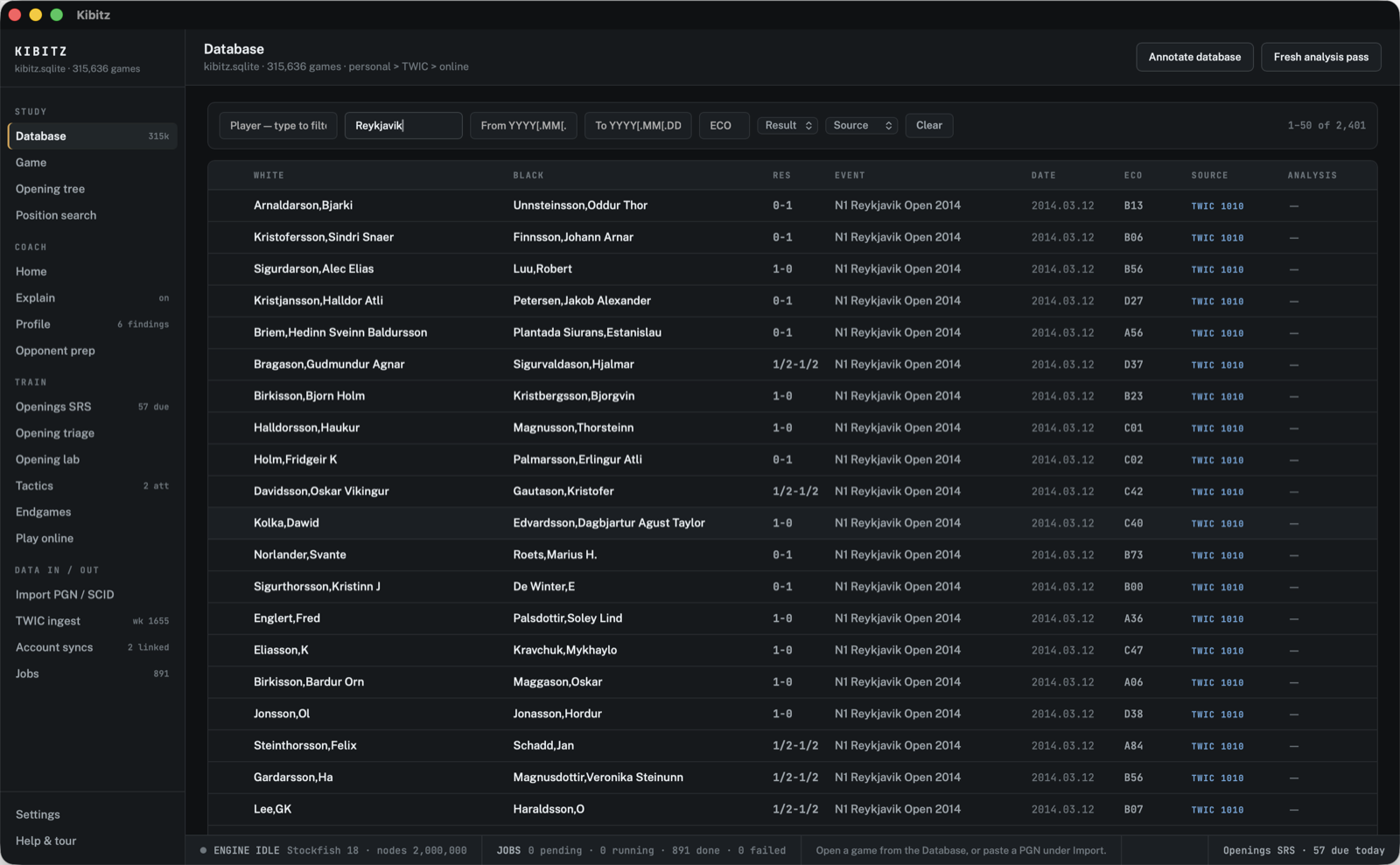
- Header actions — Annotate database and Fresh analysis pass. Both first show an estimate-confirm dialog: how many games are still uncovered, the estimated duration, and an "Estimate basis:" line quoting exactly how the estimate was derived (measured from your own completed jobs where possible, stated assumption otherwise). Jobs are resumable — pause anytime and the run picks up where it left off; already-covered games are skipped. Start enqueues the jobs *and* starts the worker.
- Filter chips — all real: Player (substring on either name), Event (substring), From / To date bounds, ECO (prefix), Result, and Source (personal / twic / online / other). Date bounds accept
YYYY,YYYY.MMorYYYY.MM.DD; PGN wildcard dates (1992.??.??) match any range they *could* fall in, and games with no date (or an unknown year) drop out whenever a date bound is set — they can never confirm the range. A malformed bound shows an inline hint and is simply not applied. The right edge shows the range readout ("1–50 of 121,438"). Filters, page, scroll position and the last-opened row survive leaving the screen — open a game, step through it, come back, and your search is exactly where you left it (a Clear chip resets; filters also survive an app restart). - Inline job row — while a batch runs (or jobs are pending), a progress row appears above the table: the batch label (ANNOTATING DATABASE / FRESH ANALYSIS PASS / ENGINE JOBS), the progress bar, "% · done / total · time left", and Pause (pauses between jobs — everything unstarted stays pending; run again to resume).
- Games table — columns: ⑂ (duplicate flag — the game is linked to its higher-priority copy, never deleted; source priority is personal > TWIC > online), White, Black, Result, Event, Date, ECO, Source (a colour-coded tag per origin), and Analysis ("fresh d28" / "legacy" / "—"). Click a row to open the game in the Game view; clicking the Event cell opens that event's crosstable (below); 50 games per page with a pager.
- With no database open, the path field + Open appear (the window title takes the database filename).
Crosstables
Every named event has a crosstable, opened from a Database row's Event cell or from the Game view header's event line (events named "?" get no affordance — there is nothing to cross-tabulate).
- Grid mode — a players × rounds table: rank, player, Elo (highest seen in the event), PTS (points / games counted — unfinished
*games score nothing), games played, PERF (average opponent Elo + 800·score − 400 over finished games against rated opponents; "—" when there are none, never a fake number), then one column per round. Each cell is the result from that player's perspective with the opponent's name; click any cell to open that game. - Round tolerance — PGN Round tags are parsed leniently:
1and1.2both bucket into round 1;?, blanks and junk land in a trailing ? column. Nothing about a ragged event can crash the view. - Swiss degrade — when fewer than half of an event's games carry a parseable Round tag, a rounds grid would be dishonest, so the view shows the scored player list only (rank / points / games / perf) and says why.
- Standings sort by points, then performance, then name. Mistagged mega-"events" are capped at the first 1,000 games with the true count stated.
Opening tree
Transposition-aware: counts merge every move order that reaches the position, and the header shows the measured query time in ms.
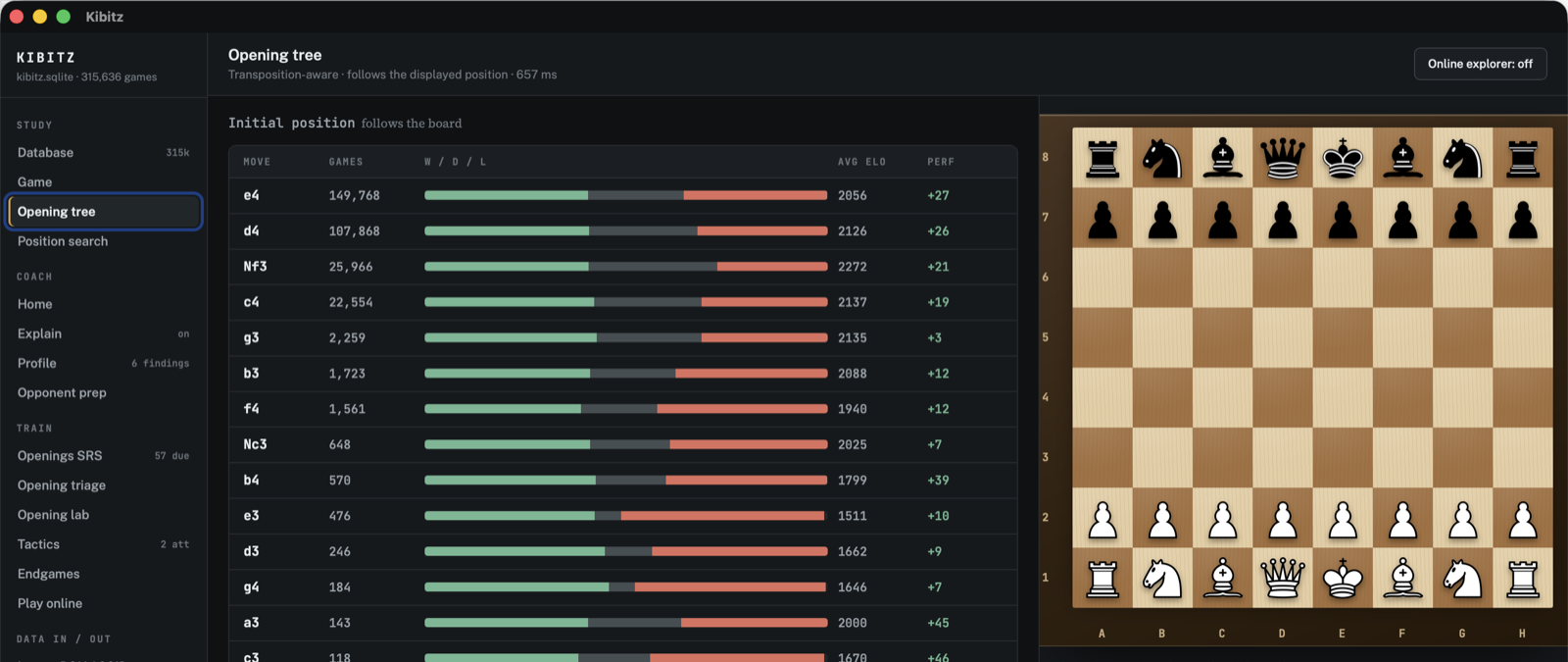
- The move line across the top is your clicked-through line; click a crumb to rewind to it, Back to start to reset.
- The moves table — move, games, a stacked W/D/L bar (hover for exact counts), average Elo, and PERF shown as the performance rating's signed delta against the movers' average Elo (hover for both absolute numbers). Clicking a move descends the tree.
- The aside — a board following the displayed position, and "GAMES REACHING THIS POSITION" (up to 12, click one to open it at that ply, with the total below).
- Online explorer (opt-in) — the header's Online explorer toggle adds a second pane beside your local tree showing the lichess opening explorer for the same position, clearly labeled "LICHESS · ONLINE DATA" (your pane is tagged "YOUR DATABASE"). It is off by default and remembered: Kibitz makes *no* network request until you turn it on. While on, requests go to
explorer.lichess.ovh— one per settled position (500 ms debounce), cached per position for the session. Clicking an online move descends the tree just like a local one. Offline or rate-limited? The pane says so inline; your local tree is unaffected.
Position search
Which games reached a position you set up yourself.
- Board editor — drag pieces freely to set up the position (drop a piece off the board to remove it). Castling rights are derived from king and rook home squares.
- FEN field — edit and press Enter (or blur) to apply; Paste FEN reads the clipboard; White to move / Black to move toggles the side; Start position and Clear board reset.
- Results — the pill shows "N GAMES · X ms" with the *measured* query time, above a table of White / Black / Result / Event / Date / Ply. Click a row to open the game at the matching ply. Long hit lists state "Showing the first N of M hits."
- Result filters — Elo ≥ / Elo ≤ bound the game's *higher* rating (min = at least one player that strong, max = both at or below); unrated games drop out whenever an Elo bound is set. From / To date bounds work exactly as on the Database screen (wildcard dates match permissively; undated games drop out), and Result is an exact match. The pill's count is the *filtered* total.
For an arbitrary FEN from a script, the CLI find-fen does the same query.
COACH views
Explain
A toggle for the Game view's Explain panel (documented above), not a page. The badge shows whether it is on.
Profile
Engine-derived findings about one player — and every number on the screen is a control: clicking a motif cell, a structure bar, a phase tile or a rate tile re-targets the evidence aside on the right.
- Build form — player name (suggestions after two characters), Build profile (Enter works). Building your own profile also caches it so Home's findings panel stays current. Rebuild re-runs it.
- Serif lede — names the one or two dominant findings in plain language, from real data only (or honestly declines: "No dominant weakness stands out yet…").
- MOTIF MATRIX — per motif ("Loose piece (LPDO)", "Under-defended piece", "Trapped piece", "Exposed king"): MISSED (a tactic was available to the player and not played) and ALLOWED (their move created the weakness against them) — both clickable; VS PEERS is an honest "—" until peer baselines ship.
- STRUCTURE REPORT — a bar per recurring pawn-structure flag showing the player's score in those games against the 50 % baseline tick.
- PHASE ACCURACY — ACPL tiles for opening / middlegame / endgame with blunder/mistake/inaccuracy counts.
- CONVERSION & DEFENCE — conversion rate from +2.00, defence rate from −1.00 (both "—" when no data). These need stored evals: run a Fresh analysis pass (or Re-analyze per game) first.
- Evidence aside (right, 420 px) — the selected claim's count pill, a what-this-is paragraph citing real numbers, and the supporting games. Opening an evidence row jumps to the game at the ply that produced the claim — for "missed", the ply where the tactic became available; for "allowed", the ply where the weakness appeared; for structures, the ply where the structure was assessed. Examples are capped at three per claim ("Showing 3 of 12"); phase and rate claims aggregate eval traces and honestly state that no per-game example list exists yet.
- Train this weakness — enabled for motif claims only: seeds the Tactics queue with that motif and switches to Tactics.
- You | <opponent> subject switch — appears when you arrive from Opponent prep's "Open his profile": the same screen shows the opponent's profile (built on demand), and the switch flips between your profile and theirs.
Opponent prep
A four-step workflow in a header stepper — ① Opponent → ② Fingerprint → ③ Weak lines → ④ Master games — with free backward navigation (click any reached chip; each chip shows its chosen value) beside a persistent aside.
- Opponent — Search local lists up to eight matching names from your own database with their game counts. Fetch from Lichess / chess.com are visible but honestly disabled in this stepper — pull the opponent's games in first via the Account syncs screen (or the CLI
lichess-sync/chesscom-sync). Picking a name advances. (Home's "Prep an opponent" lands here pre-searched.) - Fingerprint — their repertoire by ECO family for the chosen colour (as White / as Black): share of games, score bar against the 50 % tick (weak families — under 50 % on 3+ games — marked), and the book-exit column ("leaves book at Nf6 (ply 5, 12×)"). AVG ELO is an honest "—" (not recorded per family yet). Click a row to rank the weak lines.
- Weak lines — ranked — cards ordered by prep value: rank, the line name (opening name, ECO, or "Out of book"), "by ply N · plays …", the score chip ("38% in 21"), and a serif paragraph explaining *why* this spot is weak, citing real counts (plus a note when it is also a book-exit point). Click one to see its master games.
- Master games — games reaching the exact position, with the stated ranking rule: both players rated 2200 or above, strongest pairings first. Click a row to open it in the Game view at the prep ply.
The aside persists across steps: a board showing the position under discussion (with a caption naming the line, ply and score), a PROFILE FINDING about this opponent (from *their* profile only — an honest absence line otherwise), Open his profile (Profile with the opponent subject), and Study in game view. Starting a prep is recorded, which keeps Home's "no prep started for X yet" truthful.
TRAIN views
Openings SRS (Repertoire Trainer)
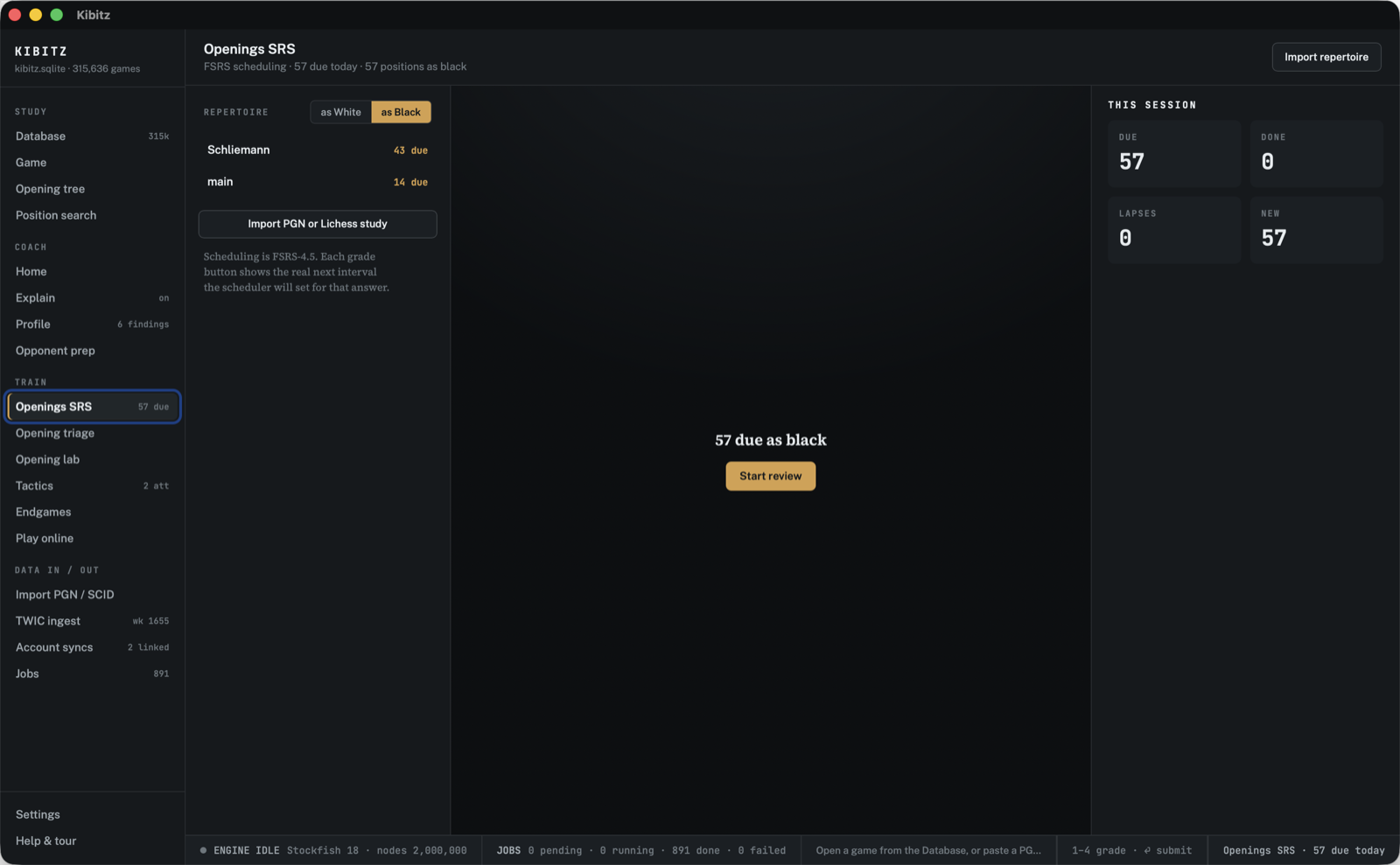
Spaced-repetition review of your opening repertoires, scheduled with FSRS-4.5. Each card is a position where it is your colour's turn plus the repertoire move you must know there. Layout: repertoire column | board | session aside.
Building a repertoire:
- From a loaded game: the "→ repertoire: as White / as Black" footer under the Moves panel (see the Game view). Lines land in the default repertoire for that colour ("main (white)" / "main (black)").
- From a PGN study (CLI-only) — the Import repertoire button shows the exact command (a Lichess study export works):
cargo run --release -p kibitz-db --bin kibitz-cli -- --db mygames.sqlite \
  import-repertoire study.pgn white --name "main"
--name defaults to main; re-importing is idempotent (positions that already have a card are left untouched — first move in wins).
Reviewing:
- The repertoire column switches as White / as Black and lists the due queue grouped by repertoire name with real due counts. The rail badge and the status strip's "Openings SRS · N due today" nudge show the combined total.
- Start review runs the due queue (up to 100 cards). Answer each prompt by playing the move on the board or typing its SAN (⏎ submits; an illegal string is called out as a typo, a legal but different move counts as wrong).
- The reveal shows the repertoire move — after a wrong answer a green arrow points it out on the board — and then you grade yourself: Again 1 · Hard 2 · Good 3 · Easy 4. Each grade button shows the real next interval the FSRS scheduler will set for that answer ("<1d", "13d", "3mo", "1.5y"). Keys 1–4 work after the reveal.
- The card's LAPSE ×N pill and the session aside's prose call out cards you keep missing ("You keep lapsing on … It stays in the queue until you answer it cleanly.").
- The session aside tracks DUE / DONE / LAPSES / NEW; the session ends with "N reviewed — X correct, Y to relearn".
Opening triage
After your games sync in, the triage tells you exactly where your opening play needs work — measured against your own repertoire cards, both colors. Layout: ranked lists | board + detail aside.
Type your name as it appears in your games (suggestions come from the local database; all your name forms and declared aliases count as you — see Profile's identity panel) and Run triage. The walk is static database work: the engine stays off.
Each recent game is classified at the FIRST moment it left your book:
- DEVIATIONS — you left your own book. You had a card for the position but played a different move. The row shows the book move vs what you played; source games open at the deviation ply so you can see what happened next.
- GAPS — opponent moves your book doesn't answer. While you were still in book, the opponent played a move whose resulting position has no card, although another reply from the same position is covered (e.g. you know 1.e4 e5 but they played 1...c5). Gaps come in two shapes, and the triage keeps them apart honestly: - Whole-opening holes — the uncovered move was the opponent's FIRST move of the game. That is not nine near-identical rows of "no card after 1.d4 / 1.c4 / 1.g3…"; it is one row per opponent move: "No repertoire vs 1. d4 (63 games)", with an Infer from your games button that reads what you already play from exactly that position (your own games, rooted after the opponent's move) and offers those lines for adoption. - In-book gaps — mid-line holes inside a line you were actually following. These keep the classic per-position rows; they are the per-move repairs the triage was built for.
- FRONTIERS — where your book ends. Both sides followed the book until it simply ran out: after your last carded move, no opponent reply leads to a covered position.
When your play IS your repertoire — the reality check. If your cards say one thing but your own games overwhelmingly play another (the played move appears in at least 10 games AND at least 3× as often as you actually followed the card), the triage stops scolding and says so: "Your cards say 1... e5 — but you've played 1... c5 in 119 of 120 games. That looks like your real repertoire." The panel lists the lines you actually play from there (game counts, your score, opening names) with two honest choices: Adopt what you play rewrites the conflicting card to your real move (its training restarts fresh — the old memory was memory of the old move), adds cards for the rest of each line, and re-runs the triage; Keep training the cards dismisses the panel for this session and lists the deviation normally. Nothing is ever adopted automatically.
I know my answer — play it on the board. Every gap row (whole-opening holes and in-book gaps alike) and every reality-check panel also takes your own move directly: select the row and the position board accepts a move for your color (promotions included). Nothing is written until you confirm — "Set 1... Nf6 as your repertoire answer to 1. d4? [Set as my answer] [Cancel]". Confirming adds the line (the path to the position plus your move) as SRS cards and re-runs the triage; cancelling snaps the board back.
Rows are ranked by how many games hit the same point (the N× badge — transpositions collapse onto one row), then by earliest ply. The summary line reports the real shapes it found, e.g. "199 games scanned · your play disagrees with your cards at 1 position · 2 whole-opening holes · 3 in-book gaps". Selecting a row shows the position on the board, the line that reached it, the ECO name when it is a book position, and every source game as a link.
Extending the book (gaps and frontiers): Extend with engine (4 lines) asks Stockfish for a deep MultiPV analysis (4 candidate lines, depth 30) of the position. The click is the explicit engine request — the job is queued through the shared job queue and the worker starts immediately; the aside shows honest progress ("Queued — N jobs ahead of it", "Engine analysing…", or a retryable failure). Requests are idempotent: asking again for the same position reuses the existing job or result.
The finished result is stored durably (it survives restarts; rows with one show "engine lines ready"). Each candidate line renders with its white-POV eval and an Adopt button: adopting adds the line to that color's repertoire from this exact position — your moves in it become SRS cards (confirmed with the real cards-added count) and show up in Openings SRS on their normal schedule. A gap you adopt a line for stops being a gap on the next triage run; its frontier moves outward instead.
No repertoire yet? The triage suggests one from your games. You don't have to have named a repertoire before the screen is useful. The color tab you land on is one that actually has cards (with no cards anywhere, the color you have more games as) — never a dead tab. When the selected color has no cards, its games are honestly reported as skipped ("White games are skipped until a White repertoire exists — adopt one below.") and the triage reads your recent games as that color instead: it builds the tree of your own in-book moves (the bundled CC0 openings dataset decides what's "in book") and lists every line at least 3 of your games support — branching on opponent replies too — up to 12 lines, each with its game count, your score in those games, and the opening name. Adopt a single line or Adopt all N lines: your moves become SRS cards (real cards-added totals are shown) and the triage re-runs automatically, so you land on actual triage points for the repertoire you really play. If no games are found for your name at all, the message names the identity forms it searched — declare your online handle on the Profile screen's INCLUDES strip if it's missing. You can still build the book by hand instead: add lines from the Game view ("→ repertoire") or import a PGN study.
Hover a line to walk it on the board. Every prospective line — inferred lines, reality-panel lines, whole-opening-hole suggestions, and engine candidates (here and in the Opening lab) — scrubs on hover: sweep the mouse across the moves and the position board plays them out (a small caption says where you are, e.g. "after 3. Nf3"); leaving the line snaps the board back.
Opening lab
"I've struggled with my Nimzo for years without improving — which book moves should I actually pick and train?" The Opening lab answers that from your own games, with a reframe: it finds where the games actually *die*. Maybe the opening isn't the problem at all. Layout: picker + verdict + branch table | board + recommendation aside.
Step 1 — pick a cohort. Type your name (all your name forms and declared aliases count as you) and List my openings: every opening family you actually play, per color, with real game counts and ECO ranges ("Nimzo-Indian Defense · as Black · E20–E59 · 412 games"). Pick one; your last pick is remembered.
Step 2 — the verdict. For each cohort game the Lab computes, from a static walk (engine off): the ply it left opening theory (the bundled CC0 dataset), the stored eval at that exit, your first significant error (the first of your moves that drops the eval by ≥ 1.2 pawns from your point of view — stored evals only, fresh preferred over legacy imports), and the game's middlegame structure tags (the same classification the Profile uses). The one-paragraph verdict states where the damage happens, honestly:
- *"Your games leave book around move 9 with 80% of evaluated games still equal or better — the opening is not where they die. The damage happens around moves 18–26 …, most often in own-isolated-pawn positions."* — a middlegame-understanding gap; see the homework list.
- *"You are often already worse when you leave book …"* — the opening itself is the problem; fix the highest-damage branches.
- Games without stored evals are counted as unanalyzed — never guessed at. The one Re-analyze N games button covers exactly those: it shows an estimate first (its basis string shown verbatim — assumed engine speed, since measuring would spawn the engine), and Start now enqueues one bounded eval per position through the shared job queue and starts the worker — the click is the explicit engine request. Progress is the real queue count; the verdict rebuilds when the run finishes.
Step 3 — branches. Every in-book position where it was your move, ranked by damage = frequency × score deficit (games × points lost vs a 50% baseline). Each row shows your actual move distribution with per-move score, stored-eval average, book status, and the opponent replies you really faced. Selecting a branch shows the position and its source games (deep-linked to the exact ply).
Step 4 — the recommendation. Extend with engine (4 lines) runs the same deep MultiPV book-extension job the triage uses (queued + worker started on click; idempotent). Each candidate line then shows its factors separately — never a single opaque score:
- SOUND — the engine eval of the line.
- FITS — the structures the line steers into, joined against your cached profile's scores in them ("own-isolated-pawn 29.2% (12 games)"). No cached profile → an honest "build a profile to see fit" note instead of a number.
- COVERAGE — the share of opponent replies you actually face that the move keeps inside theory; a candidate you have never played says "no reply data yet" rather than faking 100%.
- An in repertoire marker when the candidate is already your card.
Adopt puts the line into that color's repertoire from the branch position — your moves become SRS cards on their normal schedule.
Step 5 — structure homework. Your first-error positions in the verdict's killer structures, each deep-linking the game at the error ply with the eval swing ("+0.1 → −1.6"). Reviewing those moments — not more move memorization — is the point when the verdict says middlegame.
Tactics
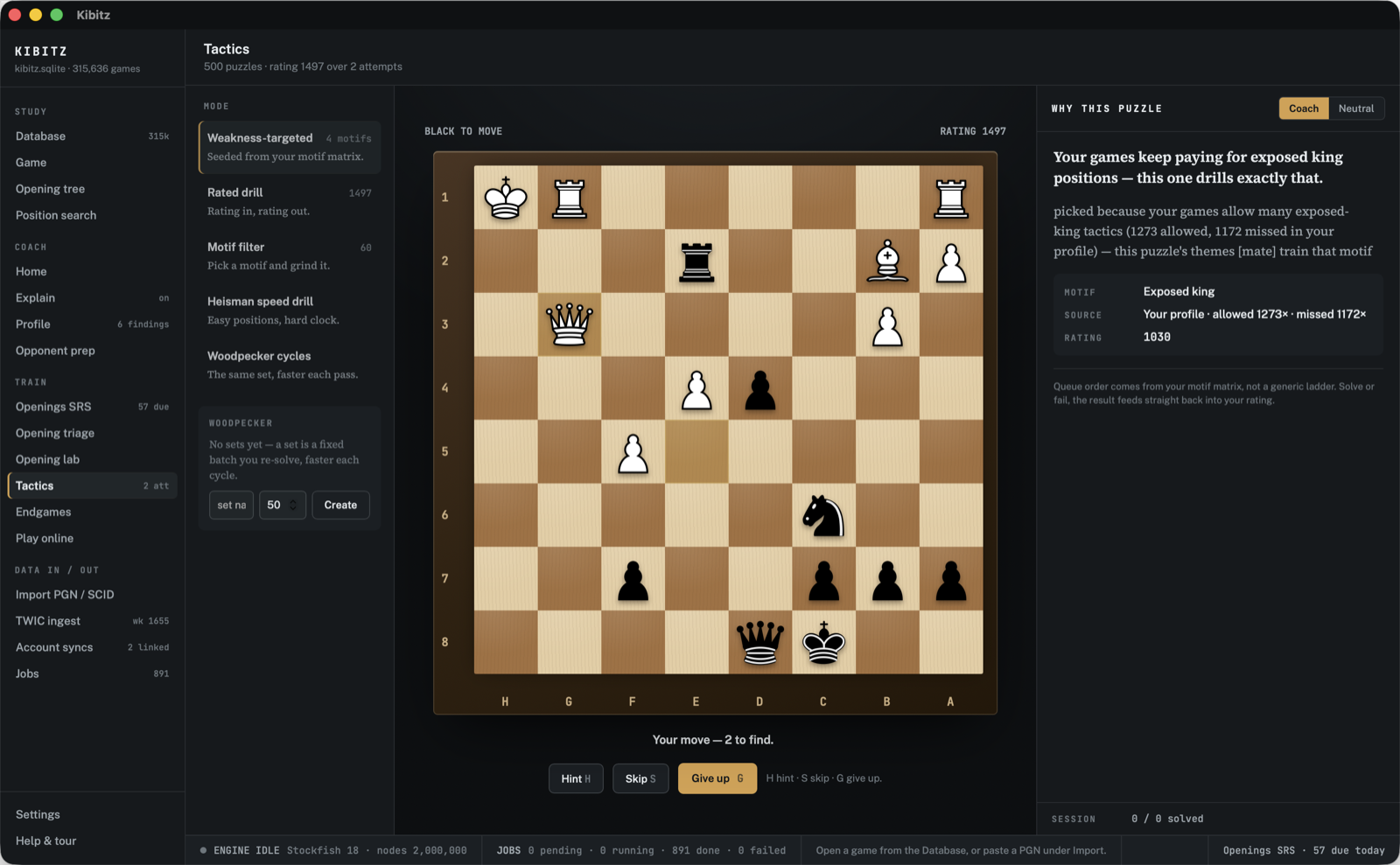
Puzzle drills over the Lichess puzzle database. Layout: mode column | board | WHY THIS PUZZLE reasoning aside. No engine is involved — solving is checked against the stored solution line. The header shows puzzle count, your tactics rating and attempt count.
The five modes (mode column; badges are real numbers or absent):
- Weakness-targeted — *the default.* "Seeded from your motif matrix": the queue favours the motifs your profile says you suffer from. Needs your profile (or a seed). Arriving via Profile's Train this weakness shows a SEEDED <motif> chip (× clears it) and restricts the queue to that motif.
- Rated drill — "Rating in, rating out": an unsolved puzzle within ±100 of your rating (the band widens only when empty).
- Motif filter — pick a theme from the dropdown (with puzzle counts) and grind it.
- Heisman speed drill — "Easy positions, hard clock": puzzles rated 300–900 below you; recognition speed is the training variable; already-solved puzzles stay in the pool.
- Woodpecker cycles — the same fixed set, faster each pass. The Woodpecker panel shows the latest set's last cycles as accuracy bars with times, Start next cycle, or a create-set form (name + size).
Solving — Next puzzle (⏎): the opponent's setup move plays after a beat, the clock starts (the clock renders only in the timed modes: speed and Woodpecker), and you play every solution move on the board, oriented to your side (opponent replies play automatically).
- Hint (H) — highlights the square the answer moves *from*.
- Skip (S) — fails the puzzle and shows the solution.
- Give up (G) — jumps to the final position with the solution.
- Keys H / S / G / ⏎ never fire inside a text field.
- A wrong move fails the puzzle (answer + full solution shown; no retries on a rated attempt); an alternate checkmate is accepted; promotion moves open the picker (underpromotions included). After finishing, ◀ / ▶ replay the solution.
- The meta row tracks side to move, your STREAK, your RATING with the session delta, and the clock (timed modes).
WHY THIS PUZZLE aside — a Coach | Neutral voice toggle (the same voice state as Explain), a voice-aware headline, and the body quoting the selector's per-pick reasoning verbatim in weakness mode ("picked because your games allow many … tactics (N allowed, M missed in your profile) — this puzzle's themes […] train that motif"). The facts block stays non-spoiling: MOTIF shows your profiled motif in weakness mode but otherwise says "revealed when solved" until you finish; SOURCE credits your profile or the Lichess puzzle id (CC0); RATING is the puzzle's. The footer tracks the session (solved/attempts) or the Woodpecker queue.
Importing puzzles — when no puzzles are imported yet, the board column offers the import: CSV path (default testdata/corpus/lichess_db_puzzle.csv) + Import CSV (puzzles below popularity 50 are skipped). Download lichess_db_puzzle.csv from database.lichess.org (CC0). The CLI import adds knobs:
cargo run --release -p kibitz-db --bin kibitz-cli -- --db mygames.sqlite \
  import-puzzles lichess_db_puzzle.csv --min-popularity 50 --max-rows 100000
The rating is Elo-style against fixed puzzle ratings (K = 40 for your first 30 rated attempts, then K = 20); only rated, motif and weakness attempts move it.
Endgames
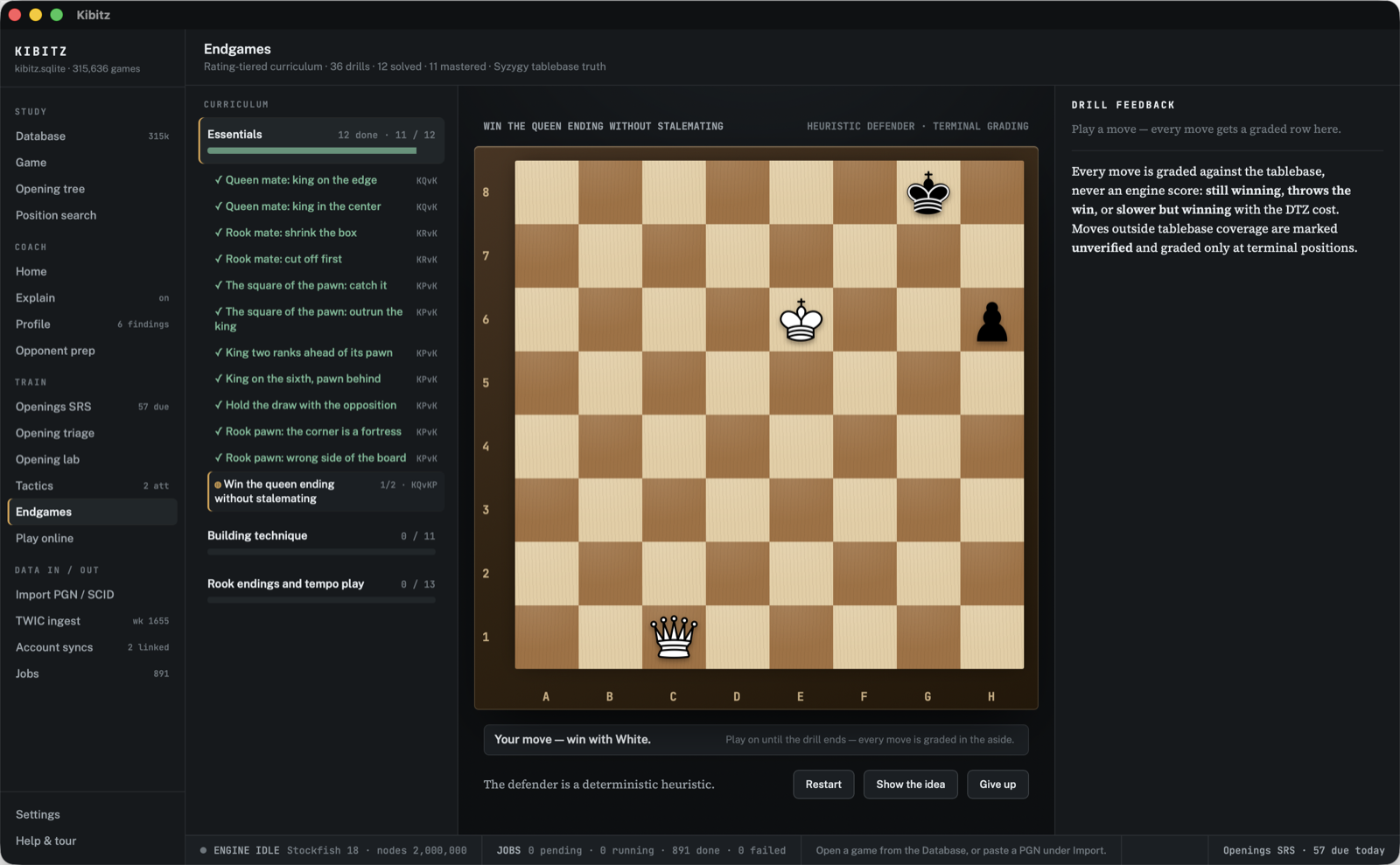
A rating-tiered curriculum of classic theoretical positions, played out against the toughest defence available and graded against tablebase truth, never an engine score. Layout: curriculum column | board | feedback aside.
- Curriculum column — tiers (Essentials, up to ~1000 · Building technique, ~1000–1500 · Rook endings and tempo play, ~1500–1900) with mastered/total progress bars; the active tier expands to its drills (✓ = mastered, material like "KQvK", hover for the concept).
- Board column — the drill title plus an honest verification label: "TABLEBASE TRUTH · N PIECES" when the defender actually probes the tablebase for this drill, else "HEURISTIC DEFENDER · TERMINAL GRADING". The objective line states the goal ("Objective: win with White. The defender replies from the tablebase."). Buttons: Restart (restarting mid-attempt concedes it first — recorded honestly), Show the idea (the instruction stays hidden until asked), Give up.
- DRILL FEEDBACK aside — one graded row per move: - WINNING — still winning (tablebase-verified); - SLOWER — still winning but slower, with the DTZ cost ("DTZ +6 plies"); - THROWS — the move forfeits the theoretical result (fails the drill); - TABLEBASE / HEURISTIC — the defender's reply row, labeled by where that reply actually came from (no engine runs anywhere in this flow); - UNVERIFIED — outside tablebase coverage; graded only at terminal positions (checkmate / stalemate / draw).
- A drill is mastered after 2 clean completions ("Clean streak 1/2" → "Drill mastered.").
Tablebases: the Syzygy directory resolves from the KIBITZ_SYZYGY environment variable, else by walking up to testdata/syzygy. The repo script
scripts/fetch_syzygy_test_files.shdownloads the complete 3-man set (under 100 KB) — enough for the test suite, but most drills have more pieces and then fall back to the heuristic defender; point KIBITZ_SYZYGY at a 3-4-5-man set for tablebase-verified play across the whole curriculum.
Play online
Play rated or casual games on lichess without leaving Kibitz (rail: TRAIN → Play online), over the official lichess Board API. The loop is: seek → play on the standard board → the finished game imports automatically with full provenance and shows up on Home under "New since", feeding the same profile and tactics machinery as any other personal/online game.
Connecting your account
- On lichess: Preferences → API access tokens → New personal access token, with the board:play scope (that one scope is enough).
- In Kibitz: Settings → LICHESS PLAY, paste the token, Save token.
The token is a secret and is treated like one: it is validated against your lichess account, then stored in its own file in the app config directory with owner-only (0600) permissions — never in the database, never logged, and never shown again in full (Settings displays only "configured · ends in …XXXX" and the username it signed in as). Clear token deletes the file and stops all play streams.
Time controls — rapid, classical, correspondence only
Lichess restricts third-party clients to rapid, classical and correspondence — no bullet or blitz. The seek card offers exactly that: realtime presets (10+0 up to 30+20, each labeled with its honest speed class) and correspondence with 1–14 days per move. A realtime seek keeps a connection open until an opponent is found (Cancel withdraws it); a correspondence seek is parked on lichess until someone joins.
Playing
The game runs on the standard Kibitz board — your color at the bottom, promotion picker included. Clocks tick locally from the last server state and resync on every move. Buttons: Abort (before move two), Offer draw / Accept draw / Decline draw, and Resign (with a confirm step). Closing the app mid-game is safe — especially for correspondence: on relaunch the Ongoing games list (from your lichess account) lets you rejoin any game in progress, with the full move list restored from the stream.
Fair play — assistance is off. Period.
While a lichess game is in progress no engine, no coach explanation, no live analysis and no suggestions are reachable from the play screen — the screen simply has none of those surfaces, and a visible notice says so. This is the lichess Terms of Service, and it is enforced structurally in Kibitz the same way the engine-off principle is (a regression test fails the build if an analysis surface is ever wired in). When the game finishes it is imported without any engine jobs; open it from Home or the Database afterwards and Annotate / Re-analyze it explicitly, like any other game.
Import details
Finished games import through the same machinery as account syncs: source kind "online", name lichess play: <username> <gameId>, the exact export URL as origin, and a license note. Duplicates are detected, so a game that later arrives again via a full Lichess account sync is linked, not duplicated.
DATA IN / OUT views
Import PGN / SCID
- PGN — paste into the text area and Load, Open file… for a
.pgn/.txtfile, or Sample game (Anderssen–Kieseritzky, London 1851). Loading switches to the Game view. - SCID (.si4) — imports through the command line for now:
kibitz-cli import-si4 <base>converts a.si4/.sg4/.sn4base into the SQLite database the app opens. Legacy engine analysis is preserved and tagged — never deleted, only superseded by fresh analysis.
Note: pasting a PGN loads it for *viewing* — storing games in the database is a CLI import.
TWIC ingest
The full Week in Chess catalog — every issue from the earliest one the TWIC zip archive serves (issue 920, ≈ June 2012) through the latest known issue — with per-issue status. The rail badge shows the newest imported week ("wk NNNN").
- Catalog table (paginated, newest first): issue number, approximate publication week ("≈ YYYY-MM-DD" — weekly arithmetic from a fixed anchor, so dates can slip a few days), status (imported / not downloaded) and the games imported from that issue.
- Refresh catalog — the only thing that asks theweekinchess.com what the newest published issue is: a handful of HEAD requests (typically 2, hard cap 12; the exact count is shown), run only on this explicit click. Until the first refresh (or import) the table is empty rather than guessed.
- Downloading — tick issues and Download selected, or Download all missing. Downloads run on a background worker, strictly serially, one issue at a time, with an inline progress row and a cooperative Cancel (stops after the current issue; everything imported stays). An issue is never fetched twice. Before the very first download the first-run notice (TWIC is donation-funded; personal use only) must be acknowledged in-UI.
- Auto-download — a toggle (mirrored in Settings → Data): when on, opening the database quietly downloads the NEWEST missing issues, newest first, max 5 per app launch — the cap is enforced in the backend, so window reloads never restart the allowance. Older missing issues are a deliberate manual step (Download all missing / checkbox selection). Progress shows in the status strip.
TWIC data is for personal use only and is never bundled or redistributed; downloads go to your own database with full provenance. CLI equivalent: twic-sync (see "Downloading games" below).
Account syncs
Per-service cards for online accounts; the rail badge counts configured accounts. Usernames persist in the open database, and each service's last sync result (games imported / duplicates / failures, with its timestamp — or the error, verbatim) is stored and shown.
- Lichess — full game export via the Lichess API, resumed incrementally: after the first sync only newer games are downloaded.
- chess.com — monthly archives via the published-data API, oldest first, resumed incrementally; the newest (still growing) month is re-checked and duplicates are skipped.
- FICS — via ficsgames.org (a volunteer-run community archive): one year, or one month, per request — there is no incremental cursor, but re-runs are harmless. Keep requests occasional; personal use only. If the server returns a bzip2 archive the file path is shown with instructions (
bunzip2, then Import PGN). - ICC — honestly not syncable (no scriptable export API): export manually from the ICC client and use Import PGN / SCID.
All syncs run one at a time on the background worker with a descriptive User-Agent; HTTP 429 rate limits are respected automatically (a sync can pause for a minute or more — the card says so rather than showing a fake percentage). CLI equivalents: lichess-sync / chesscom-sync / fics-sync.
Jobs
The engine job queue — the engine only ever runs through it:
- Counts table: pending / running / done / failed.
- Run pending jobs — starts the worker (disabled while running or when nothing is pending). When the batch finishes, confirm-verdicts fold back into stored annotations (each tactical alert becomes confirmed, refuted, or unclear).
- "last engine:" shows the most recent engine identity.
Everything the engine does goes through this queue — annotate confirmations, re-analyze passes, database-wide batches. Nothing runs until you (or a batch confirmation) start the worker.
Status strip
Always visible along the bottom:
- Engine dot — "ENGINE RUNNING" / "ENGINE IDLE", with the engine identity and node budget.
- JOBS — pending / running / done / failed counts (polled every few seconds).
- ENGINE JOBS progress bar — appears while a batch runs, with percent complete.
- Message cell — transient app status (load results, save confirmations…).
- Keyboard hints — the active screen's working shortcuts (only where shortcuts actually exist: the Game view and Openings SRS).
- "Openings SRS · N due today" (right edge) — appears when repertoire cards are due; clicking it jumps to the Openings SRS view.
Settings
A single column of grouped cards; each row is label + explanation, the current value, and an action.
- ENGINE MANAGER — everything about the binaries and tables: - Engine binary — a path override with the *resolved* path shown underneath (resolution order: override,
KIBITZ_STOCKFISH, a repo-localtools/binary,stockfishon PATH). Verify & get version spawns the binary, runs theucihandshake, reads itsid name("Stockfish 17.1 — UCI handshake OK") and quits — no search runs, and nothing spawns without this explicit click. A binary that fails the handshake reports "Not usable" with the reason. - Node budget — bounds every engine job; thousands separators are accepted ("2,000,000"). - Syzygy tablebases — the directory of.rtbw/.rtbzfiles the endgame trainer probes. Empty = automatic (KIBITZ_SYZYGY, else the repo'stestdata/syzygy); the status line states the covered piece count or an honest "not configured". An explicit path is never silently substituted — if it is wrong, the status says so. Apply re-resolves immediately; the choice persists and is pushed at every launch. - ENGINE & ANALYSIS — Spawn policy (stated in words — the engine-off default is a product principle, not a setting); Annotate database and Fresh analysis pass rows ("Estimate & run…" — the same estimate-confirm dialog as the Database header, quoting its basis).
- COACH — Default voice (Coach/Neutral switch; applies to Explain, drill feedback and puzzle reasons; also stored in the open database); LLM verbaliser (read-only: optional and strictly grounded — it may only rewrite detector output, never add claims, and falls back to template prose on any failure; no key is stored by the app — set
ANTHROPIC_API_KEYfor the CLIexplain-llm). - DATA — Database location, with a warning when the file lives in a cloud-synced folder (Dropbox, iCloud, Drive, OneDrive): the sync client re-uploads the whole database on every write — at gigabyte size that can saturate the machine — and cloud sync interfering with a live database risks corruption. Move to app storage snapshots it into the app's own data folder (refusing while a sync or analysis batch is writing) and switches over; the old file is left as a backup to delete once you're satisfied. Account syncs (configured-account count; manage them on the Account syncs screen); TWIC auto-download (the same toggle as the TWIC ingest screen: the newest issues download quietly at database open, newest first, max 5 per app launch); Tablebase status (Syzygy loaded / not found, with the covered piece count); Schedule — the recurring commitment Home plans around (label, e.g. "Club night · Thursday", plus an optional opponent name; Save / Clear).
- APPEARANCE — Theme (Dark default / Light); Board treatment (Studio Walnut default / Instrument); Annotation display (full / hover / hidden); Piece set (cburnett — fixed for now).
Deep links
A URL hash applies once at startup, after the database opens:
#game=123&ply=24&theme=light&treatment=instrument&voice=neutral
#screen=profile&player=Carlsen, Magnus&claim=motif:WeakKing:allowed
#screen=prep&opponent=R. Halvorsen
#db=/path/to/other.sqlite&screen=homegame=/ply=— open a database game at a ply (wins overscreen=).theme=/treatment=/voice=— apply appearance and voice.screen=— home | database | tree | search | profile | prep | tactics | srs (Openings SRS) | triage | endgames | settings | help.player=— Profile: auto-build this player as the self subject.opponent=— Prep: prefill and search step 1; Profile: opponent subject.claim=— Profile: pre-select this claim's evidence ("motif:<Kind>:missed|allowed" / "structure:<flag>"); Tactics: seed the weakness queue with the motif.db=— open this database instead of the saved one (not persisted).
Any subset works. Handy for demos, screenshots and shared findings.
End-to-end workflows
Start your day from Home
- Launch — the last database opens and Home greets you (with your commitment, if one is set in Settings → Schedule).
- Resume review continues the game you left; DUE TODAY → Review openings clears the SRS queue; Solve tactics drills weaknesses.
- A finding row under YOUR CHESS opens Profile with that claim's evidence preselected; NEW SINCE … rows open this week's imports.
Import games and browse them
- CLI:
import-pgn/import-si4(or a sync command) into a.sqlitefile — see below. - STUDY → Database → enter the path → Open (subsequent launches auto-open it).
- Filter, click a game, step through it in the Game view.
Run a database-wide annotate (or fresh analysis)
- STUDY → Database → Annotate database (or Fresh analysis pass; both also live in Settings → ENGINE & ANALYSIS).
- Read the estimate dialog — games to cover, estimated duration, and the quoted estimate basis — then Start. The jobs enqueue *and* the worker starts.
- Watch the inline job row (or Home's RUNNING panel / the status strip); Pause anytime — the run resumes exactly where it left off, and already-covered games are skipped on a re-run.
Annotate a single game and confirm tactics with the engine
- Load a game from the Database view.
- Header bar → Annotate — instant static comments; the engine checks run immediately (inline ANNOTATING row) and verdicts fold back automatically when the batch finishes: confirmed tactics lead with the engine's line, refuted ones vanish, and plan plies gain a recommended move vetted by the engine. (Jobs → Run pending jobs still resumes anything paused or left over.)
- Edit by hand in the Moves panel (comments, NAGs, variations) and Save; Export PGN to take the annotated game elsewhere.
Drill a weakness end to end
- COACH → Profile → Build profile (evals from a Fresh analysis pass make the phase/conversion numbers live).
- Click the loudest number — say a motif's ALLOWED cell. The evidence aside shows the supporting games; open one to land on the exact ply where the weakness appeared.
- Press Train this weakness — Tactics opens in weakness mode, seeded with that motif (the SEEDED chip shows it).
- Solve — the WHY THIS PUZZLE aside quotes why each puzzle was picked, and every result feeds your tactics rating.
Prep for an opponent
- Home → "Prep an opponent" (or COACH → Opponent prep) → search, pick the name.
- Fingerprint their colour, click a weak family → ranked weak lines → master games; Study in game view opens the top game at the prep position.
- Open his profile for the full findings; the prep is recorded so Home stops nagging about it.
Build and train an opening repertoire
- Load a model game, step to where your line ends, and use "→ repertoire: as White / as Black" under the Moves panel — or bulk-import a PGN study with the CLI
import-repertoire. - TRAIN → Openings SRS → pick the colour → Start review.
- Answer on the board or by typing; grade yourself Again/Hard/Good/ Easy — the buttons show the real next intervals.
- Come back when the rail badge (or the status-strip nudge) shows cards due — FSRS schedules the rest.
CLI-only features
Everything below has no UI entry point (exceptions are noted inline) — it exists only in the developer CLI (kibitz-cli) or the validation harness (wsui-validate). Run them from the repository root. The general form is:
cargo run --release -p kibitz-db --bin kibitz-cli -- --db <path.sqlite> <subcommand> [args]--db defaults to kibitz.sqlite in the current directory; the database is created and migrated automatically. (A built binary works the same: kibitz-cli --db <path.sqlite> <subcommand> [args].)
Database creation & import (CLI-only)
- Create / migrate a database
cargo run --release -p kibitz-db --bin kibitz-cli -- --db mygames.sqlite init- Import a PGN file (streaming; malformed games are skipped; provenance is recorded with every source):
cargo run --release -p kibitz-db --bin kibitz-cli -- --db mygames.sqlite \
  import-pgn games.pgn --source-name "My games" --origin "local file" \
  --license "personal data" --kind personal
--kind is one of personal|twic|online|other and controls duplicate priority.
- Import a SCID database (pass the base path of the
.si4/.sg4/.sn4triple; inline comments, NAGs, and variations are preserved):
cargo run --release -p kibitz-db --bin kibitz-cli -- --db mygames.sqlite \
import-si4 /path/to/scidbase --source-name "SCID import" --kind personal- Import a repertoire PGN for the Openings SRS trainer — every mainline move of the chosen color becomes a training card (the UI can only add lines from a loaded game, one at a time).
--namedefaults tomain; re-import is idempotent:
cargo run --release -p kibitz-db --bin kibitz-cli -- --db mygames.sqlite \
import-repertoire study.pgn white --name "main"- Import Lichess puzzles for the Tactics trainer. The Tactics view's "Import CSV" button does the same import (fixed popularity cutoff 50); the CLI adds
--min-popularity(skip puzzles below that Lichess popularity, −100..100) and--max-rows(stop after importing that many):
cargo run --release -p kibitz-db --bin kibitz-cli -- --db mygames.sqlite \
  import-puzzles lichess_db_puzzle.csv --min-popularity 50 --max-rows 100000
Downloading games (CLI equivalents)
These all have UI homes now — the TWIC ingest and Account syncs screens (see above) — and remain available for scripting:
- TWIC incremental sync — downloads The Week in Chess issues to *your* machine for personal use (TWIC data must never be redistributed; a notice prints on first run).
--fromis required the first time:
cargo run --release -p kibitz-db --bin kibitz-cli -- --db mygames.sqlite \
  twic-sync --from 1580 --max-issues 5
Later runs resume where the last one stopped:
cargo run --release -p kibitz-db --bin kibitz-cli -- --db mygames.sqlite twic-sync- Lichess user games (resumable):
cargo run --release -p kibitz-db --bin kibitz-cli -- --db mygames.sqlite \
lichess-sync SomeUsername- chess.com monthly archives (resumable):
cargo run --release -p kibitz-db --bin kibitz-cli -- --db mygames.sqlite \
chesscom-sync SomeUsername- FICS games via ficsgames.org (volunteer-run archive — keep requests occasional; personal use only). Whole year, or one month with
--month:
cargo run --release -p kibitz-db --bin kibitz-cli -- --db mygames.sqlite \
  fics-sync SomeUsername 2025 --month 6
Queries & reports (CLI-only)
- Repertoire fingerprint — per-color openings, most-visited positions, and book deviations for a player (
--jsonfor the full record; the Opponent-prep screen shows a per-colour summary of the same data):
cargo run --release -p kibitz-db --bin kibitz-cli -- --db mygames.sqlite \
fingerprint "Carlsen, Magnus"- List matching player names (the UI only offers autocomplete inside Prep/Profile):
cargo run --release -p kibitz-db --bin kibitz-cli -- --db mygames.sqlite \
players carlsen- Find games by FEN — games reaching an arbitrary typed position, with query timing (the UI's Position search does this for a position you set up on its board):
cargo run --release -p kibitz-db --bin kibitz-cli -- --db mygames.sqlite \
find-fen "rnbqkbnr/pppppppp/8/8/4P3/8/PPPP1PPP/RNBQKBNR b KQkq - 0 1"- LLM-verbalized explanation — the static analysis explained via the Anthropic API, post-validated with automatic fallback to template prose (needs
$ANTHROPIC_API_KEYor--api-key):
cargo run --release -p kibitz-db --bin kibitz-cli -- \
  explain-llm "r1bqkbnr/pppp1ppp/2n5/4p3/2B1P3/5N2/PPPP1PPP/RNBQK2R b KQkq - 3 3"
CLI equivalents of app features
These duplicate UI functionality, useful for scripting and batch work (opening-tree, explain, stats also exist and mirror the Opening tree view, the Explain panel, and the database summary):
cargo run --release -p kibitz-db --bin kibitz-cli -- --db mygames.sqlite export-pgn 123
cargo run --release -p kibitz-db --bin kibitz-cli -- --db mygames.sqlite annotate-game 123
cargo run --release -p kibitz-db --bin kibitz-cli -- --db mygames.sqlite reanalyze-game 123 --nodes 200000
cargo run --release -p kibitz-db --bin kibitz-cli -- --db mygames.sqlite run-jobs --max-jobs 100
cargo run --release -p kibitz-db --bin kibitz-cli -- --db mygames.sqlite profile "Carlsen, Magnus" --json
run-jobs needs an engine binary (set KIBITZ_STOCKFISH if it is not on PATH) and, like the Jobs view, folds verdicts back into annotations when the jobs finish.
WSUI validation harness (CLI-only)
wsui-validate measures the tactical screen's precision/recall against Lichess puzzles (positives) and engine-quiet positions (negatives); results are recorded in docs/VALIDATION.md.
- Build the quiet-position set from an imported master-game database:
cargo run --release -p kibitz-db --bin wsui-validate -- \
--build-quiet-from mygames.sqlite --per-class 500 > quiet_fens.txt- Run the validation (train/holdout split, holdout numbers reported):
cargo run --release -p kibitz-db --bin wsui-validate -- \
--puzzles lichess_db_puzzle.csv --quiet quiet_fens.txt --per-class 2000- Emit a small committed fixture subset from the full puzzle dump:
cargo run --release -p kibitz-db --bin wsui-validate -- \
  --puzzles lichess_db_puzzle.csv --emit-fixture 500 > puzzles_sample.csv
Where things are stored
- Everything lives in the SQLite database you open — games, annotations, engine evaluations, the job queue, repertoire cards and their review history, imported puzzles with your attempts and tactics rating, endgame drill progress, and the provenance (source, license, date) of every import. Home's memory lives there too: the last-opened game, started preps, your commitment, the cached profile behind the findings panel, and the narration-voice setting.
- UI preferences (database path, theme, board treatment, Explain on/off, annotation display, narration-voice fallback, engine path, node budget, the Syzygy directory override, the Opening-tree online-explorer toggle, the first-run-tour flag) persist in the app's local storage.